
If you’ve been putting off launching a site because WordPress feels “technical,” take a breath. Learning how to install WordPress is honestly one of the easier wins in web stuff — and once it’s done, you’re in.
This guide walks you through a full WordPress installation the way most people in the U.S. actually do it: one-click on hosting, the classic manual/”5-minute install,” and a quick local setup for testing. No fluff, no robot tone.
What you need before you install WordPress
Before you hit install, grab these:
- A domain name (yoursite.com)
- Web hosting that supports PHP + MySQL/MariaDB (pretty much any solid shared host)
- Your hosting login (cPanel, hPanel, or whatever your host uses)
- About 10–20 minutes and a password manager (please don’t reuse “Admin123”)
Official requirements live on WordPress.org, but modern hosts already meet them. If your host advertises “WordPress hosting,” you’re fine.
Method 1: How to install WordPress with one-click (easiest)
Most U.S. hosts give you Softaculous, Fantastico, or a built-in WordPress installer. This is the path I’d take if you’re launching a real site today.
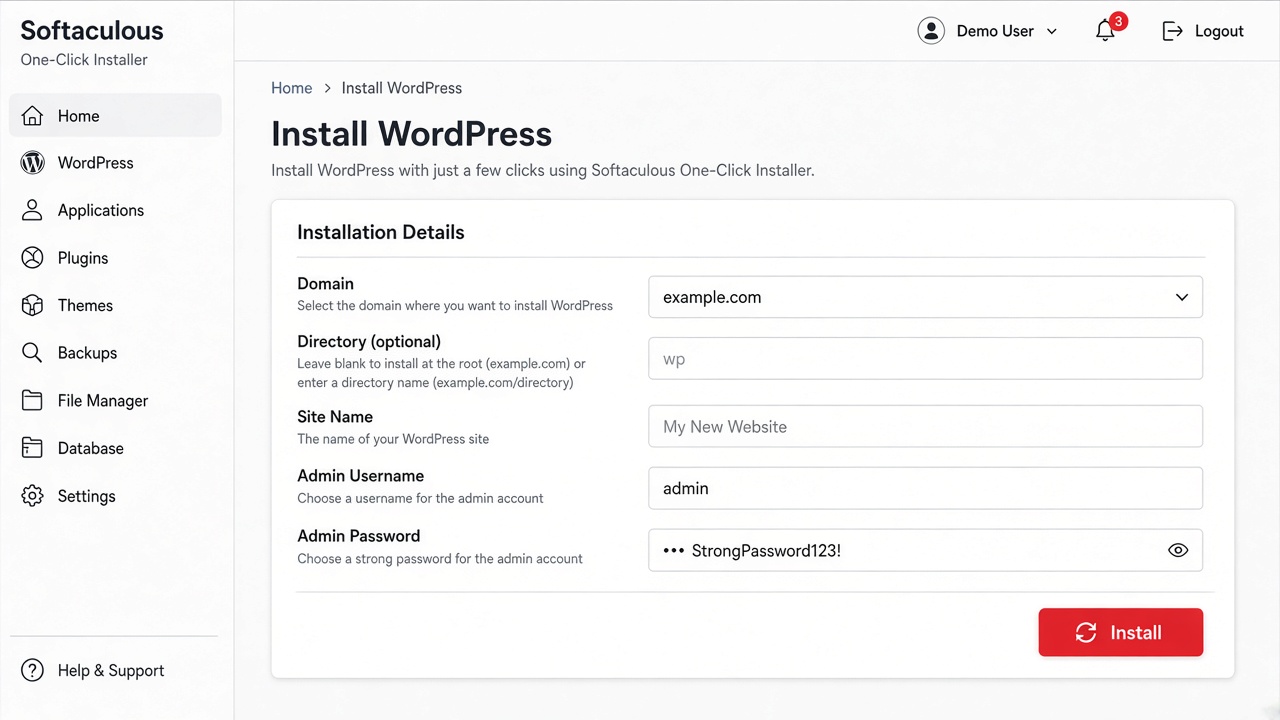
Install WordPress on cPanel with Softaculous
- Log into cPanel.
- Find Softaculous Apps Installer (or a WordPress icon under Auto Installers).
- Click WordPress → Install.
- Pick your domain. Leave the directory blank to install at the root (example.com). Type
blogonly if you want example.com/blog. - Set a site title, admin username (not “admin”), strong password, and email.
- Hit Install and wait for the success screen.
That’s it. You just finished a WordPress installation without touching FTP. Bookmark the login URL your installer shows — usually yoursite.com/wp-admin/.
If your host uses a custom installer
Bluehost, SiteGround, Hostinger, and similar brands have their own “Install WordPress” buttons. Same idea: choose domain → create admin → install. Don’t overthink the brand UI.
Method 2: How to install WordPress manually (5-minute install)
This is the classic route. People still call it the WordPress 5-minute install, and yeah — if your host is cooperative, it really can be that fast.
Step 1: Download WordPress
Grab the latest package from wordpress.org/download and unzip it on your computer.
Step 2: Create a MySQL database for WordPress
In cPanel (or your host panel):
- Open MySQL Databases.
- Create a new database.
- Create a database user with a strong password.
- Add that user to the database with All Privileges.
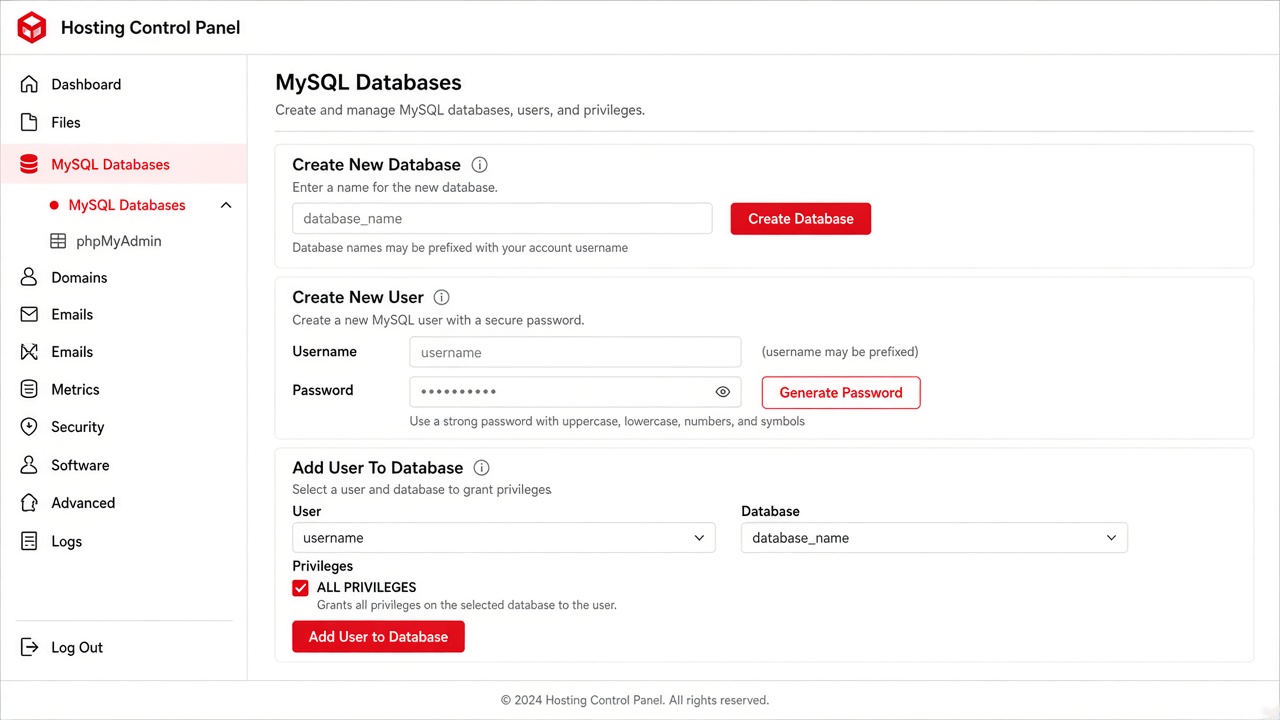
Step 3: Upload WordPress files (File Manager or FTP)
Upload the unzipped WordPress files into public_html (root install) or a subfolder like public_html/blog if you’re doing a subdirectory install.
Tip: upload the contents of the wordpress folder — not an extra nested wordpress folder — unless you want yoursite.com/wordpress/.
Step 4: Run install.php in your browser
- Visit
https://yoursite.com/wp-admin/install.php(add your folder if needed). - Choose language → Let’s go!
- Enter your database details.
- Set site title, admin user, password, email.
- Click Install WordPress.
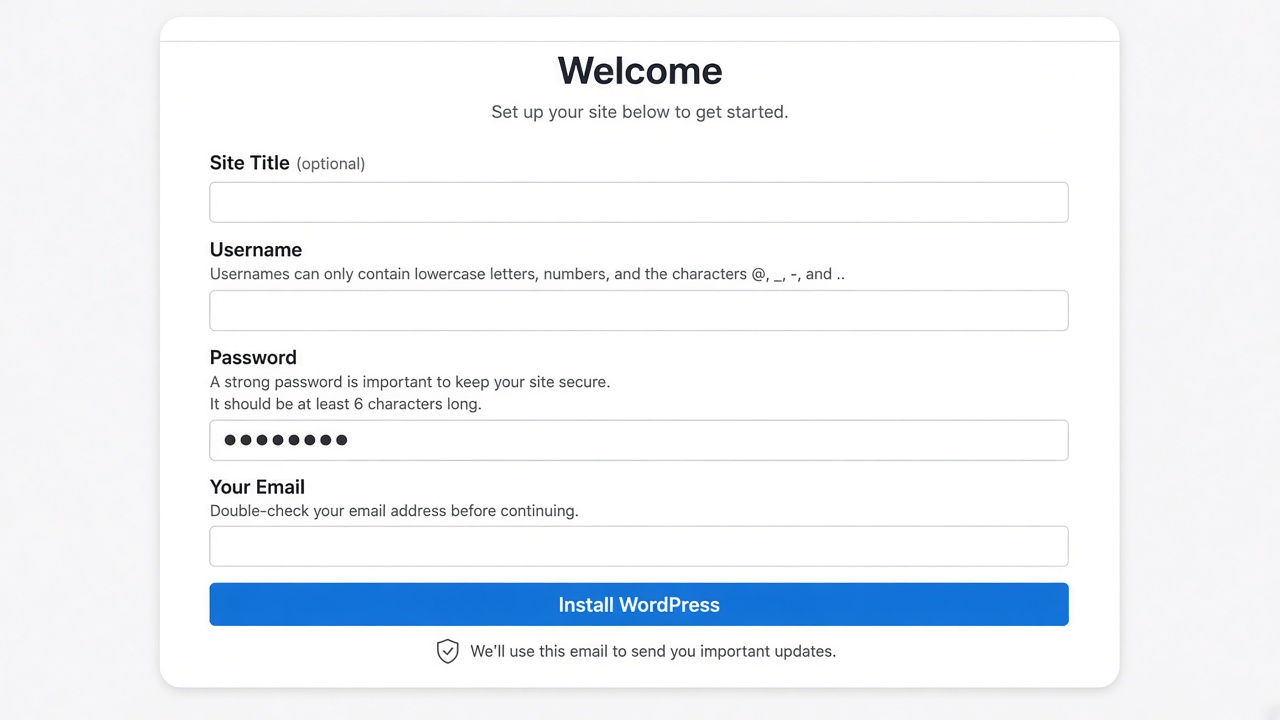
When you see the success screen, you’re done. Log in at /wp-admin/ and look around.
Method 3: Install WordPress locally (great for testing themes)
Want to poke around without breaking a live site? Install WordPress on your computer first.
- Local (by Flywheel) — easiest for most folks
- MAMP / XAMPP — classic local stack
- Docker / DevKinsta — nicer if you’re more technical
Create a new site in the app, open it in the browser, and you’ll get a working WordPress install in a few clicks. Perfect for trying themes before you push anything public.
After WordPress installation: do these 6 things
- Change your permalinks to Post name (Settings → Permalinks).
- Delete default content you don’t need (Hello world, Sample page).
- Install an SSL certificate (Let’s Encrypt via your host) and force HTTPS.
- Pick a theme — start simple, then upgrade when you’re ready.
- Add only the plugins you need (security, backups, SEO). Don’t install 40 on day one.
- Set up backups before you get creative.
If you’re shopping for a premium look after install, browse our WordPress themes catalog — and if something breaks, the buyer forums are there.
- [ ] Domain pointed to hosting
- [ ] Hosting account active
- [ ] Database created (manual method) or auto-created (one-click)
- [ ] WordPress installed at root or subdirectory
- [ ] Admin login saved somewhere safe
- [ ] HTTPS working
- [ ] Permalinks set
- [ ] Backup plugin or host backup enabled
FAQ: people also ask about installing WordPress
How long does it take to install WordPress?
One-click installs usually finish in under 5 minutes. Manual installs take closer to 10–20 minutes the first time, mostly because of the database step.
Can I install WordPress for free?
WordPress software is free. Hosting and a domain usually aren’t (unless you use a free host — which I’d skip for anything serious).
Should I install WordPress on the root or in a subdirectory?
Root (example.com) is best for your main site. Use a subdirectory (example.com/blog) when WordPress is only powering part of an existing site.
What’s the difference between WordPress.com and WordPress.org?
WordPress.org is the self-hosted software this guide covers. WordPress.com is a hosted service with its own plans and limits. Different products, same family name.
I see “Error establishing a database connection” — now what?
Your database name, user, password, or host in wp-config.php is wrong — or the database server is down. Double-check the credentials in your host panel first.
Do I need coding skills to install WordPress?
Nope. If you can fill out forms and follow steps, you can install WordPress. Coding helps later for customization, not for the install itself.
Written for real humans launching real sites — not for keyword robots. If you get stuck mid-install, start a thread in the forums and include your host name + exact error message.